








BGMI 90 FPS and 120 FPS: supported devices and how to enable them
Only certain phones can run BGMI at 90 FPS, and even fewer unlock 120 FPS through Ultra Extreme. Here is which devices support each frame rate and how to switch them on.
Jul 15, 2026
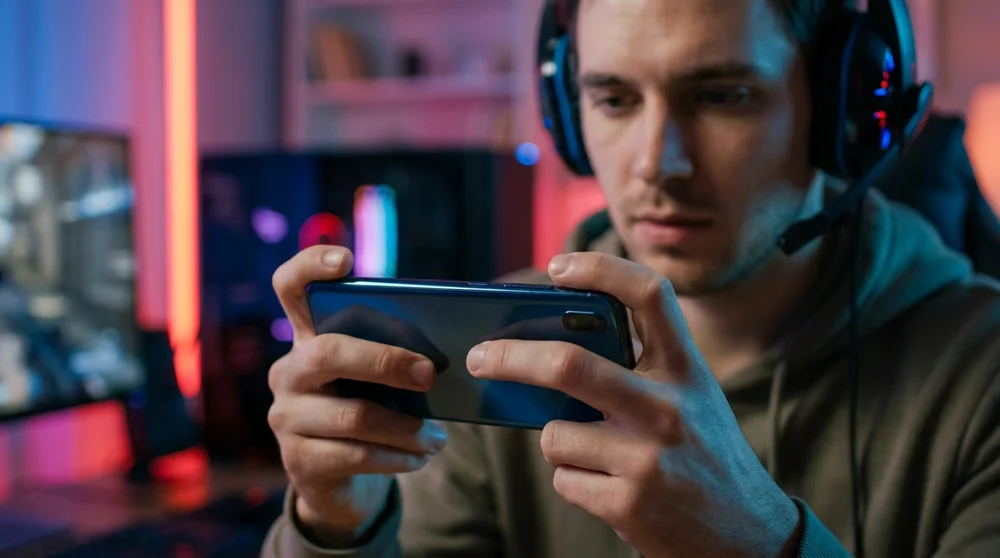
If you want smoother aim and quicker reactions in Battlegrounds Mobile India, the frame rate you play at matters more than almost any graphics preset. A supported phone can run BGMI at 90 FPS, and a smaller group of flagships can push it to 120 FPS through the Ultra Extreme setting. Here is what your device needs for each, and the exact steps to turn them on.
What higher frame rates actually change
Frame rate is how many images your phone draws every second. At 60 FPS the game refreshes a new frame roughly every 16.6 milliseconds. At 90 FPS that drops to about 11 milliseconds, and at 120 FPS to around 8.3 milliseconds. The picture on screen is the same, but it updates far more often, so an enemy sprinting across a doorway looks fluid instead of stuttered and your own tracking feels more connected to your thumb.
In a game decided by who lands the first clean shot, that responsiveness is a real edge. It is also why competitive players chase the highest frame rate their hardware allows, even when it means turning graphics detail down. Two things have to line up before BGMI will let you do it: a screen that refreshes fast enough, and a chipset powerful enough to feed it.
BGMI frame rate options, from Low to Ultra Extreme
Inside BGMI the frame rate ladder runs Low, Medium, High, Ultra, Extreme, 90 FPS and Ultra Extreme. Extreme caps out at 60 FPS and is available on almost every phone that can run the game. The two settings above it are the ones that depend on your hardware. The “90 FPS” option unlocks 90 frames per second, and “Ultra Extreme” is the label BGMI uses for 120 FPS.
The higher you climb this ladder, the more the game restricts your graphics quality to keep frame times stable. That trade sits at the centre of the 90 versus 120 decision, and it is worth understanding before you flick either switch.
BGMI 90 FPS supported devices
To run 90 FPS you need two things: a display with a 90Hz or higher refresh rate, and a reasonably recent flagship-class processor. As a rough line, that means chipsets from around the Snapdragon 865 era and newer, along with the equivalent MediaTek Dimensity and Apple silicon. If the “90 FPS” toggle appears in your graphics menu, your phone qualifies. If it is greyed out or missing, it does not.
The supported list is long and grows with every new launch, but it includes phones such as the OnePlus 9, 10, 11, 12 and 13 series, iQOO’s flagship line, Samsung’s Galaxy S20 through S25 families and the Galaxy Z Fold foldables, Xiaomi and POCO flagships, and gaming handsets like the ASUS ROG Phone and Nubia Red Magic. Plenty of upper mid-range phones with 90Hz or 120Hz screens qualify too, so the in-game toggle is the only definitive check.
One big exception is the iPhone. Even the Pro models ship with a 120Hz ProMotion screen, but BGMI is capped at 60 FPS on iOS because of system-level restrictions, so iPhone owners cannot select 90 or 120 FPS no matter how powerful the phone is. On Apple hardware, only the iPad Pro line unlocks higher frame rates. High frame rate BGMI is, in practice, an Android and iPad Pro feature.
How to enable 90 FPS in BGMI
The setting lives in the graphics menu and takes a few seconds to switch on.
- Open BGMI and tap the Settings gear at the top right of the lobby.
- Go to the Graphics tab.
- Pick a graphics quality your phone can handle at high frame rate, such as Smooth or Balanced.
- Under Frame Rate, select “90 FPS”.
- Confirm the change and head into a match to feel the difference.
If “90 FPS” is not on the list, your device is not on the whitelist for it, and no in-app tweak will force the option to appear.
BGMI 120 FPS supported devices (Ultra Extreme)
The 120 FPS tier is stricter. A phone has to clear three bars before the Ultra Extreme option shows up: a display that refreshes at 120Hz, a top-end flagship chipset, and approval on Krafton’s own whitelist. Meeting two of the three is not enough, which is why some capable-looking phones still miss out.
The devices that make the cut are the newest premium flagships and dedicated gaming phones. That includes recent OnePlus and iQOO flagships, Samsung’s Galaxy S24, S25 and S26 Ultra models plus the latest Z Fold, Xiaomi’s Ultra line, and gaming brands such as ASUS ROG Phone and Nubia Red Magic that are built around sustained high frame rates. On Apple hardware, recent iPad Pro tablets can run Ultra Extreme, but iPhones cannot, since BGMI stays capped at 60 FPS on iOS. As with 90 FPS, the honest test is whether the option appears in your own graphics menu.
How to enable 120 FPS in BGMI
There is one catch that trips people up: 120 FPS is only offered on the Smooth graphics preset. Krafton locks it there so the chipset can keep frame times steady rather than overheat chasing detail and speed at once. Set your phone up first, then the game.
- Open your phone’s system settings and set the screen refresh rate to 120Hz (look under Display, sometimes labelled Motion smoothness or High refresh rate).
- Launch BGMI and open Settings, then Graphics.
- Set Graphics quality to “Smooth”.
- Open the Frame Rate list. With Smooth selected on a supported phone, “Ultra Extreme” now appears.
- Select Ultra Extreme and confirm.
If Ultra Extreme still refuses to show after all that, the phone is not on Krafton’s 120 FPS whitelist, whatever its spec sheet claims.
90 FPS at Ultra graphics or 120 FPS on Smooth?
This is the choice most players actually have to make, and there is no single right answer. Ultra Extreme gives you the fastest, most responsive tracking BGMI can produce, but only with the visuals dialled down to Smooth, so the world looks plainer. Ninety FPS lets you keep a richer graphics preset while still feeling far sharper than 60.
For pure competitive play, most serious players take the 120 FPS route and accept the flatter visuals, because the extra responsiveness helps in close gunfights. If you value how the game looks, or your phone runs hot and drains fast at the top setting, 90 FPS on a nicer preset is the more comfortable everyday choice. High frame rates draw noticeably more power and generate more heat, so battery life and thermals are part of the decision, not an afterthought.
Why the frame rate option might be missing
If a frame rate you expected is not listed, the usual reason is hardware: the phone either lacks a fast enough display or has not been whitelisted for that tier. A few other things are worth checking. Make sure BGMI is fully updated, since device support is revised with new versions. Confirm your system refresh rate is set to its highest value, as some phones default to 60Hz to save battery. And remember that battery saver or thermal throttling can quietly cap the refresh rate while they are active, hiding options that normally appear.
Once you have the frame rate sorted, the next gains come from your control setup and aim settings. Our guide to BGMI sensitivity settings and no-recoil codes pairs naturally with a higher frame rate, and if you play claw or thumb it is worth reading up on BGMI control codes and layouts and gyro sensitivity to get the most out of that smoother screen.