








BGMI control codes: how to share layouts and the best claw setups
Control codes let you copy a full BGMI button layout in seconds. Here is how to share one, how to import it safely, and which claw grip to build it around.
Jul 8, 2026
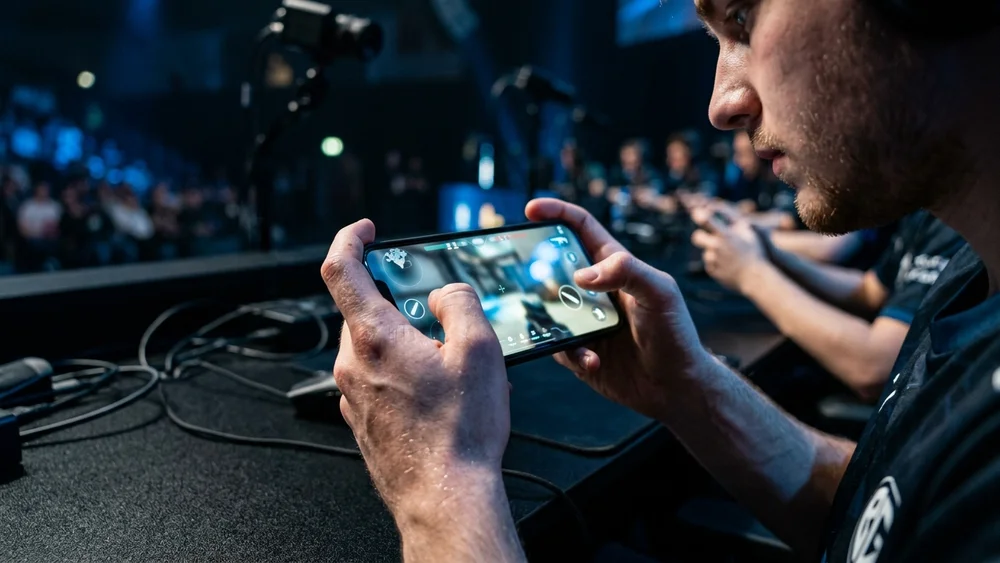
A BGMI control code is a 19-digit string that copies a player’s entire button layout in one paste. Instead of dragging every fire button, scope key and jump icon into place by hand, you drop in the code, preview the layout and apply it. It is the fastest way to try a pro’s setup or hand your own layout to a squadmate, and it is completely separate from the sensitivity code most players confuse it with. Here is how the sharing works, how to import a code safely, and how to pick the claw layout that actually suits your hands.
What is a BGMI control code?
A control code stores where your on-screen buttons sit and how big they are. Fire button position, the scope and aim keys, the jump and crouch icons, the lean buttons, the size of each element: all of it travels inside that one 19-digit code. When someone shares their layout, they are sharing this.
The part people get wrong is treating it as the same thing as a sensitivity code. It is not. Sensitivity controls how fast your camera and gun move when you swipe, and it has its own separate code. A control code touches none of that. You can run a friend’s button layout with your own sensitivity, or the other way round, because BGMI keeps the two as different files. If you have already tuned your aim using our guide to BGMI sensitivity settings and no-recoil codes, importing a new control layout will not undo that work.
How to share your BGMI control code
Generating a code from your own layout takes about thirty seconds:
- Open Settings and go to the Controls tab.
- Tap Customize to open your current button layout.
- Find the share option in the layout panel and choose which profile you want to send, whether that is Layout 1, Layout 2 or the large-icon set.
- Confirm, and the game generates a 19-digit share code.
- Copy it and send it to whoever wants your setup.
That code is a snapshot of the layout at the moment you make it. If you keep tweaking your buttons afterwards, the old code still carries the old positions, so generate a fresh one whenever you want to share your latest version.
How to copy someone else’s control code
You cannot rebuild another player’s layout by eye, which is the whole reason codes exist. To import one:
- Get the 19-digit code from wherever it was posted, whether a creator’s video description, a Discord server or a teammate’s message.
- In Settings, open Layout Management and paste the code into the search box.
- The game shows a comparison between your current layout and the imported one before anything changes.
- Back up first. Before you apply, use the Upload to Cloud option so your existing layout is saved and you can restore it if the new one feels wrong.
- Apply the layout, then head to the training ground and test it before you take it into a ranked match.
If you see a “failed to retrieve layout share data” message, the usual causes are a mistyped code, a weak connection or a game that has not been updated to the latest version. Check all three and try again.
Which claw layout should you use?
A control code is only as good as the grip it was built for. The number of fingers you play with decides how many buttons the layout spreads around the screen, so match the code to your own style rather than copying blindly.
| Layout | Fingers on screen | Best for |
|---|---|---|
| Two-finger (thumbs) | Both thumbs only | New players and casual matches |
| Three-finger claw | Both thumbs plus one index finger | Players moving up from thumbs who want to shoot while moving |
| Four-finger claw | Both thumbs plus both index fingers | Competitive players who need to move, aim, shoot and scope at once |
The default two-finger grip keeps every button within thumb reach. It is the easiest to learn but it forces you to choose between moving and shooting, since both live under the same thumbs. Most players start here.
The three-finger claw frees up your left index finger for the fire button, so you can run and shoot at the same time while your thumbs handle movement and aim. It is the most comfortable step up from thumbs, which is why it is usually the first claw grip new players are told to try.
The four-finger claw adds your right index finger for scoping, which means you can move, aim, fire and open your scope without lifting a finger. It is what most professionals use because the reaction time is quicker, but it is also the hardest to learn and takes real practice before it feels natural.
Building a good four-finger claw layout
If you are chasing the four-finger setup, the principle is simple: put the buttons your index fingers control near the top corners of the screen, where those fingers naturally rest, and leave the thumbs the movement joystick and aim area at the bottom. The left index finger sits over the fire button, the right index finger sits near the scope, and neither thumb has to leave its job to shoot or zoom.
From there it is about comfort. Screen size, hand size and whether you play with a case all change where a button should sit, so treat any imported code as a starting point rather than a finished answer. For ready-made options and specific setups, our breakdown of the best four-finger claw BGMI control codes walks through several layouts you can copy and adjust.
Ready-made code or build your own?
A shared code is the quickest way to feel what a claw grip is like, and there is no shame in borrowing a layout you saw a creator use. The catch is that codes are not permanent. A big BGMI update can shift the HUD or add new buttons, and an old code made before that patch may import with icons out of place. When that happens, do not assume the layout is bad, just open Customize and nudge the stray buttons back.
The players who improve fastest usually import a code once, then spend a few sessions in the training ground moving each button a little until it fits their hands. Copy to learn the shape, then adjust it to fit your hands. A layout you tuned yourself will always beat one you pasted and never touched.
BGMI control codes: quick answers
Is a control code the same as a sensitivity code? No. A control code carries your button layout; a sensitivity code carries your camera and firing sensitivity. They are separate 19-digit codes and importing one does not change the other.
Can I copy a layout without a code? Not directly. BGMI does not let you rebuild another player’s exact layout by hand, so the share code is the only clean way to copy one.
Will importing a code delete my current layout? Only if you skip the backup. Use Upload to Cloud before you apply a new code and you can restore your old layout at any time.
How long does it take to get used to a claw grip? Most players need a week or two of regular practice before a three-finger claw stops feeling awkward, and longer for four fingers. Stick to the training ground and lower-stakes matches while your hands adjust, rather than switching grips in the middle of a ranked push.